Category: Website Development

  • WordPress Block Editor Fails to Load? Fix It in 60 Seconds

    WordPress Block Editor Fails to Load? Fix It in 60 Seconds

    If your WordPress Block Editor fails to load, you are likely staring at a white screen or seeing a “Publishing Failed” error. This frustrating issue is rarely a bug in WordPress itself; instead, it’s usually caused by over-aggressive security settings like hotlink protection. In this guide, we’ll show you how to get back to writing immediately.

    Most users assume their site has been hacked or that a plugin is broken. However, the culprit is often something much simpler: Your security settings are too high. specifically, your Hotlink Protection and Content Security Policy (CSP) are blocking the very scripts WordPress needs to run.

    Common Reasons Why the WordPress Block Editor Fails to Load

    The modern WordPress editor is built on React DOM. Unlike the old “Classic Editor,” which was just a simple text box, the Block Editor is a complex application that constantly “talks” to your server via the WordPress REST API.

    If your server sees these internal requests as “unauthorized,” it kills the connection. This results in:

    • The White Screen of Death when opening a post.
    • reCAPTCHA Errors on your contact forms.
    • 403 Forbidden Errors in your browser’s inspection console.

    The Quick Fix: The “Hosting Manager” Solution

    You don’t need to be a coder to fix this. Most modern hosting platforms (like Bluehost, SiteGround, or any cPanel-based host) have a “Hotlink Protection” toggle that is the primary cause of these crashes.

    1. Log in to your Hosting Control Panel (cPanel or your host’s custom dashboard).
    2. In the search bar, type “Hotlink Protection.”
    3. Click on the tool icon.

    Step 2: Disable or Whitelist

    You have two choices here:

    • The Fastest Fix: Simply click “Disable.” This immediately stops the server from blocking script requests. Refresh your WordPress editor, and it should work instantly.
    • The Balanced Fix: If you want to keep protection on, look for the “URLs to allow access” box. Make sure your website URL (e.g., https://mywebsite.com) is listed there.

    Important: Ensure that the checkbox for “Allow direct requests” (or “Allow empty referrers”) is checked. React DOM sometimes sends requests without a standard “referrer” header, and if this box is unchecked, your editor will break.


    Hotlink protection is designed to stop other websites from stealing your images. However, when it is configured poorly, it treats JavaScript files (.js) as images.

    Because React DOM loads scripts dynamically, your server might mistake your own editor for an “outside thief” and block the script from loading. Similarly, Google reCAPTCHA needs to communicate with Google’s servers. If your Hotlink Protection or Content Security Policy (CSP) is too strict, it blocks that handshake, leaving your forms broken.


    Don’t Forget Your CDN (Cloudflare Users)

    If you disabled Hotlink Protection in your hosting manager but the Block Editor is still failing, check your Cloudflare settings:

    1. Log in to Cloudflare.
    2. Go to the Scrape Shield tab.
    3. Toggle Hotlink Protection to OFF.

    Summary Checklist

    If your WordPress site is acting up, follow this 30-second checklist before calling a developer:

    1. Check the Console: Right-click your page > Inspect > Console. If you see “403 Forbidden,” it’s a security block.
    2. Hosting Manager: Search “Hotlink Protection” and disable it.
    3. Test: Refresh your WordPress dashboard.

    By simply allowing your server to recognize its own React scripts, you can fix 90% of Block Editor failures instantly.
  • How to Add a Sticky Header in the WordPress Block Editor (No Code Method)

    A sticky header is a simple yet effective way to keep your site navigation visible as visitors scroll down the page. The good news? You can create one directly in the WordPress Block Editor without touching any code. Here’s how to do it.

    Step 1: Group Your Header Template

    First, open your site editor (Appearance → Editor) and navigate to your header template.
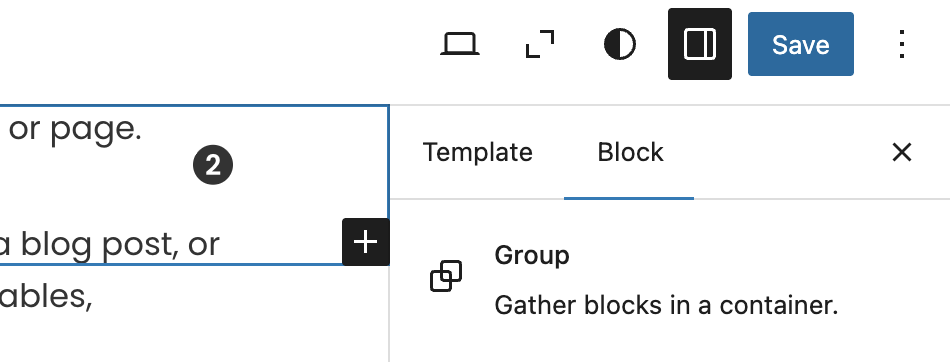
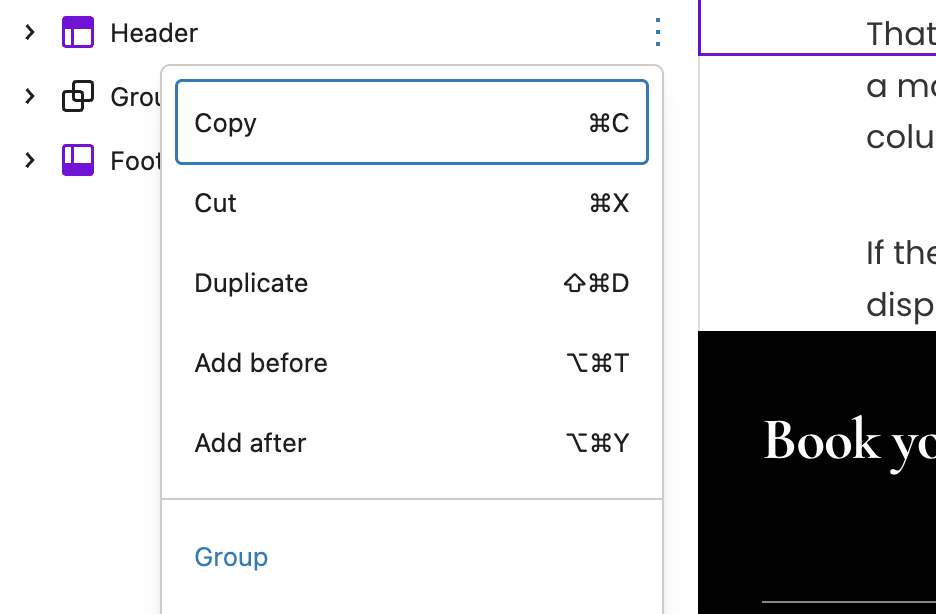
    If your header isn’t already grouped, select all the elements that make up your header — such as your site title, logo, and navigation block — then click the “Group” option from the block toolbar. This will wrap everything into a single Group block, making it easier to manage layout and positioning.

    Step 2: Set the Group Position to Sticky

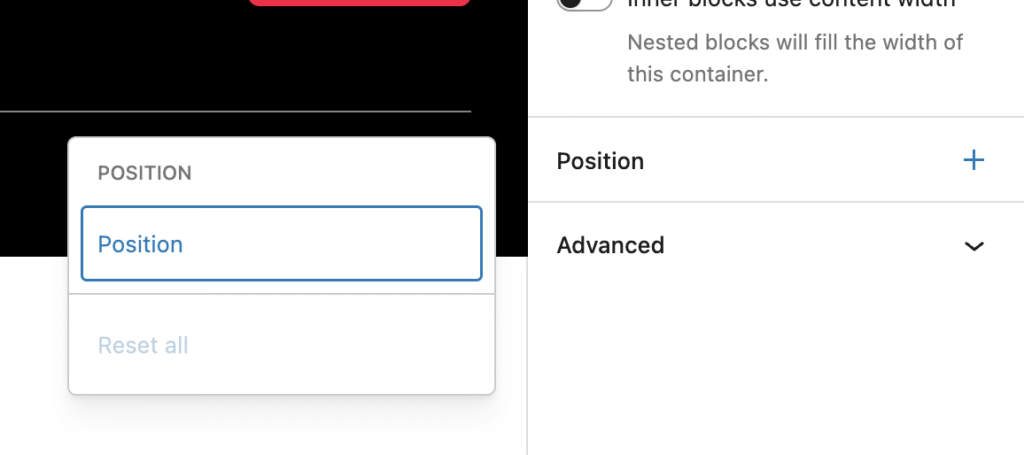
    With the Group block selected, open the Block Settings panel on the right-hand side.
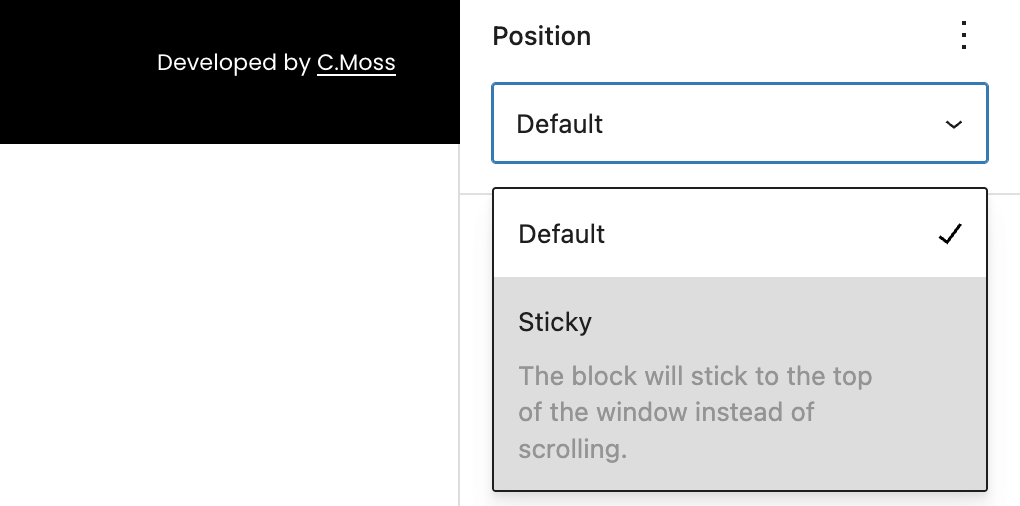
    Under the “Position” section, you’ll find an option called Position. Choose Sticky from the dropdown menu.

    By default, the sticky positioning will apply to the top of the page, but you can also specify whether it should stick to the top, bottom, or another position using additional settings or custom CSS if needed.

    Step 3: Adjust the Z-Index and Spacing (Optional)

    To make sure your sticky header stays visible above other content, you might want to adjust its Z-index.
    In the Advanced settings, look for the Z-index field and set it to something like 10. This ensures it stays layered above your page content.

    Also, check your padding and margins so your header doesn’t overlap the page content when scrolling.

    Step 4: Save and Test

    Click Save in the top right corner and preview your site. Scroll down to confirm that your header remains visible as you move down the page.

    If it’s not behaving as expected, make sure:

    • The header group is at the top level of your template (not nested inside another group with overflow hidden).
    • The sticky option is applied to the correct block.
    • You’ve cleared your browser cache to see the latest changes.

    That’s It!

    With these simple steps, you’ve added a sticky header using only the WordPress Block Editor — no custom CSS or plugins required. This approach keeps your design clean, fast, and easy to manage right inside the Site Editor.

    You can contact us for similar major WordPress adjustments.

  • Achieve a 100% Lighthouse Score with WordPress Block Editor

    Achieve a 100% Lighthouse Score with WordPress Block Editor

    Building a fast, efficient, and SEO-friendly website is a top priority for website owners worldwide. One of the best ways to achieve this is by using the WordPress Block Editor as your main page builder. Not only is it free, but it also allows you to create highly customizable pages while keeping your site lightweight. In this post, we’ll explore why the WordPress Block Editor is a great choice for your website and how it can help you achieve a 100% Lighthouse Score, no matter which region you’re targeting.

    What is the WordPress Block Editor?

    The WordPress Block Editor, also known as the Gutenberg Editor, is WordPress’s default page builder. Unlike the Classic Editor, which relies on a single content box, the Block Editor allows you to build pages using blocks. Each block represents a different element, such as text, images, buttons, or even embedded content. This modern approach ensures a flexible and scalable website structure, crucial for multi-regional SEO.

    Why Choose the WordPress Block Editor?

    It’s Free and Built-In

    One of the best things about the WordPress Block Editor is that it’s completely free and comes built into WordPress. You don’t need to install third-party plugins or page builders, which often add extra bloat to your site, slowing it down in different regions with varying internet speeds.

    Highly Customizable

    Despite being lightweight, the WordPress Block Editor offers a wide range of customization options. You can design your pages using pre-built blocks or create your own custom blocks for a unique look. With block patterns and reusable blocks, designing becomes easier and faster while ensuring a consistent brand experience across different languages and regions.

    Optimized for International Growth

    The WordPress Block Editor is constantly improving, with regular updates from WordPress. It supports multilingual plugins like WPML and Polylang, making it easier to create region-specific content. It also ensures compliance with global accessibility and SEO standards, allowing businesses to expand internationally with confidence.

    Highly SEO-Friendly Across Regions

    Since the WordPress Block Editor is optimized for speed and clean code, it enhances your site’s SEO performance. Faster websites rank better on search engines, and with fewer dependencies, the Block Editor helps you maintain a high Core Web Vitals score, regardless of the country your audience is in. It also allows for structured data integration, helping search engines understand localized content better.

    Achieving a 100% Lighthouse Score

    Lighthouse is a tool that measures website performance, accessibility, SEO, and best practices. Using the WordPress Block Editor can help you achieve a perfect score by ensuring:

    • Fast loading times due to minimal extra code, crucial for mobile users in different regions.
    • Mobile-friendly design with responsive blocks, accommodating different screen sizes across global markets.
    • Clean and accessible HTML that enhances SEO, making it easier for search engines to index your site in multiple languages.
    • No unnecessary JavaScript or CSS slowing down the page, ensuring a seamless user experience across different internet speeds.

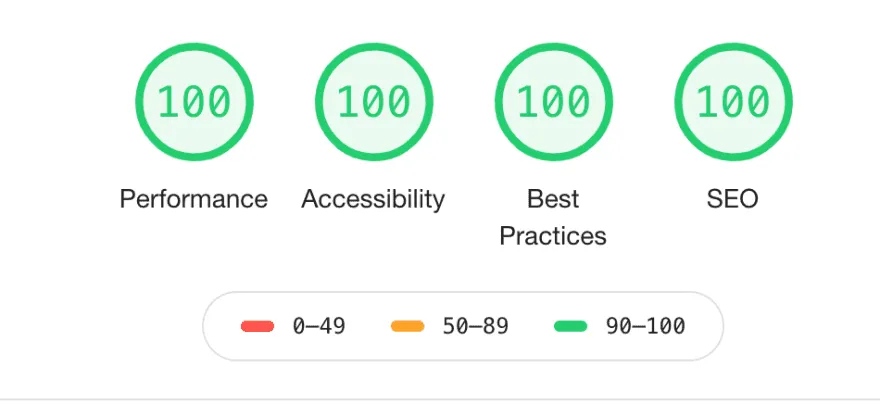
    Recent tests and real-world implementations have shown that websites built using the WordPress Block Editor can achieve perfect scores in SEO, Accessibility, Best Practices, and Performance without requiring extra plugins. Many agencies and website owners have started to move away from heavy page builders, as they often introduce slow load times, bloated code, and accessibility issues.

    A client’s website was recently relaunched using the WordPress Block Editor alone, and the results spoke for themselves: 100/100 scores across all Lighthouse categories, proving that a lightweight and well-optimized setup can outperform traditional page builders.

    Conclusion

    If you want a free, lightweight, and SEO-friendly page builder, the WordPress Block Editor is the perfect choice. By using it as your main page builder, you can create beautiful, high-performing websites that score 100% on Lighthouse, whether you’re targeting a single country or multiple regions. Start building with the WordPress Block Editor today and optimize your website for global success!

  • How to Fix Your Legacy Website

    How to Fix Your Legacy Website

    A legacy website may seem functional, but over time, it can lead to slow performance, security vulnerabilities, poor SEO rankings, and lost revenue. If your site is outdated, it’s time to take action before it impacts your business further. In this guide, we’ll walk you through the essential steps to fix your legacy website and bring it up to modern standards.

    Assess the Current State of Your Website

    Before making any changes, conduct a comprehensive audit to identify major issues, including:

    • Loading Speed Issues – Use tools like Google PageSpeed Insights to check your website’s performance.
    • Security Risks – Outdated CMS versions, plugins, or missing SSL certificates.
    • SEO Problems – Check for broken links, duplicate content, and outdated metadata.
    • Mobile Responsiveness – Test your site on various devices to ensure a seamless user experience.
    • User Experience (UX) Concerns – Analyze navigation, readability, and overall site structure.

    Update Your Website’s Code & CMS

    An outdated website often runs on old technology, making it vulnerable to hacks and performance issues. To fix this:

    • Upgrade to the latest version of your CMS (e.g., WordPress, Joomla, or Drupal).
    • Replace outdated plugins with secure, well-supported alternatives.
    • Migrate to a modern tech stack if your site is using obsolete frameworks.

    Improve Website Speed & Performance

    A slow website can drive visitors away. Speed up your site with these optimizations:

    • Enable caching to reduce load times.
    • Compress images and files to lower page weight.
    • Use a Content Delivery Network (CDN) to improve global accessibility.
    • Optimize code by removing unnecessary scripts and reducing HTTP requests.

    Strengthen Website Security

    Cyber threats are constantly evolving, and legacy websites are prime targets. Improve your security by:

    • Installing an SSL certificate to encrypt data.
    • Using a secure hosting provider with regular security updates.
    • Implementing multi-factor authentication (MFA) for admin access.
    • Regularly backing up your site to prevent data loss.

    Redesign for Modern UX & Mobile-Friendliness

    User expectations have changed, and a poor UX can hurt your brand. Make sure your website:

    • Has a mobile-first design that adapts seamlessly to all screen sizes.
    • Uses modern UI elements such as clean navigation, easy-to-read fonts, and interactive buttons.
    • Follows accessibility best practices to be usable by all visitors, including those with disabilities.

    Optimize for SEO & Improve Content

    A legacy website may have outdated SEO practices that hurt its visibility. Optimize by:

    • Updating meta titles and descriptions with relevant keywords.
    • Fixing broken links and redirects to maintain SEO authority.
    • Enhancing content with fresh, valuable insights for users.
    • Using structured data (Schema Markup) to improve search rankings.

    Migrate to a Scalable Infrastructure

    If your website is struggling with performance or growth, consider:

    • Switching to cloud-based hosting for better scalability and uptime.
    • Adopting a headless CMS for greater flexibility.
    • Upgrading your database and backend systems to improve efficiency.

    Final Thoughts

    Fixing a legacy website is more than just making it look good; it’s about improving performance, security, and user experience. By implementing these changes, you can boost engagement, enhance security, and increase conversions. Don’t let an outdated website hold your business back—start upgrading today!


    Need help fixing your legacy website? Our Affordable Managed IT Services ensure a smooth transition to a modern, secure, and high-performing website. Contact us today for a free consultation!

  • How to Build a Website in 2025: Best Options for Small Businesses

    How to Build a Website in 2025: Best Options for Small Businesses

    Even if you are starting, building a website in 2025 is easier than ever. For small business owners without technical skills or experience in coding, having a professional online presence is essential to attract customers and build their brand. Local bakery, handmade products, professional services, whatever you are selling and need a website for, the right website builder can help you build a website fast.

    This guide explores cost-effective methods for building a website in 2025. Whether WordPress, Shopify, Webflow, or Framer, these are all for those with little to no experience, as owners need a solution.


    What Does Your Small Business Need a Website For?

    A website is not just a website; it is your company’s face. Here is why you need to build a website in 2025:

    • Visibility: 81% of consumers conduct an online search before purchasing.
    • Credibility: A professional website earns the trust of potential customers.
    • Accessibility: Your business runs 24/7 to any customer around the world.

    The Best Website Builders for Small Businesses: 2025

    WordPress : A Customizable Powerhouse

    WordPress is the best option for creating all websites and has always been. It is highly customizable, making it ideal for small business owners seeking control over their website design and ensuring it aligns seamlessly with their company identity.

    Key Features:
    • Thousands of free and premium themes are available for any business type.
    • SEO, e-commerce, and social media integration plugins.• Complete autonomy in terms of design and functionality.
    Pros:
    • Scalable and adaptable to any business profile.
    • The hosting service starts at a low price of $5 per month.
    Cons:
    • Some learning curve for beginners.

    Shopify : Easy E-Commerce Management

    Shopify is a platform specifically designed for e-commerce. If your main goal is to sell products online, then Shopify is tailored for that purpose. It is easy to use, with all the tools you need to run an online store.

    Key Features:
    • A built-in payment gateway and inventory management
    • Shop-Themes, templates designed for online stores.
    • Tools for retrying on marketing, including email campaigns and abandoned cart recovery.
    Pros:
    • Easy to set up and manage.
    • Portable from small to bigger businesses.
    Cons:
    • For bigger stores, the monthly fees can accumulate.

    Webflow : Professional-Looking Design, Without the Code

    With Webflow, you can build a website without touching any code. It is ideal for entrepreneurs who need professional design with a customizable component.

    Key Features:
    • Advanced design features using a drag-and-drop visual editor.• Beautiful & Responsive designs for every device.
    • Animations and interactions of your design.
    Pros:
    • It offers both design flexibility and user-friendliness.
    • SEO-friendly tools built in.
    Cons:
    • The steep learning curve for advanced features

    Framer : includes building interactive prototypes.

    Framer is an innovative web design tool that allows you to create stunning, interactive websites without needing any coding skills.

    Key Features:
    • Easy drag-and-drop editor.
    • To add a more modern feel with sleek animations and transitions.
    • Get started quickly with pre-made templates.
    Pros:
    • Fast to use with no technical background needed.
    • It is excellent for the creative industries.
    Cons:
    • Scalability for complex websites is limited.

    How to Select a Suitable Website Builder

    Here are some tips to help you choose the right platform:

    1. Determine Your Goals: Are you selling products or services or showcasing a portfolio?
    2. Factor In Your Budget: Consider both the initial and recurring costs.
    3. Scalability: Look for a package that will allow your company to grow.

    SEO Tips for Your New Website

    Here are some of the best SEO practices to make sure your website ranks high on Google:

    1. Use Keywords Wisely: Use relevant keywords in headings, page titles, and content to boost your search engine ranking.
    2. Optimize the page titles and meta tags: add your focus keyword to a title and create an appealing meta description.
    3. Make Sure Your Website Is Mobile Friendly: Most users will view your site on a cell phone.
    4. Enhance the page loading speed: Use an optimized image and a quality hosting provider.
    5. Create Quality Content: Write style should be blog posts on your blog, product descriptions, and about pages.

    Conclusion

    Building a website in 2025 does not have to be complicated. For flexibility, WordPress is a great option. If you focus on e-commerce, Shopify is an excellent choice. For those looking to create a professional website, Webflow is ideal. On the other hand, Framer is perfect for anyone who wants to express their creativity in website design. These website builders offer distinct features that make them excellent choices for small business websites.

    Take the first step today to find the right platform, create your new site your way, and let your small business flourish online!