
A sticky header is a simple yet effective way to keep your site navigation visible as visitors scroll down the page. The good news? You can create one directly in the WordPress Block Editor without touching any code. Here’s how to do it.
Step 1: Group Your Header Template
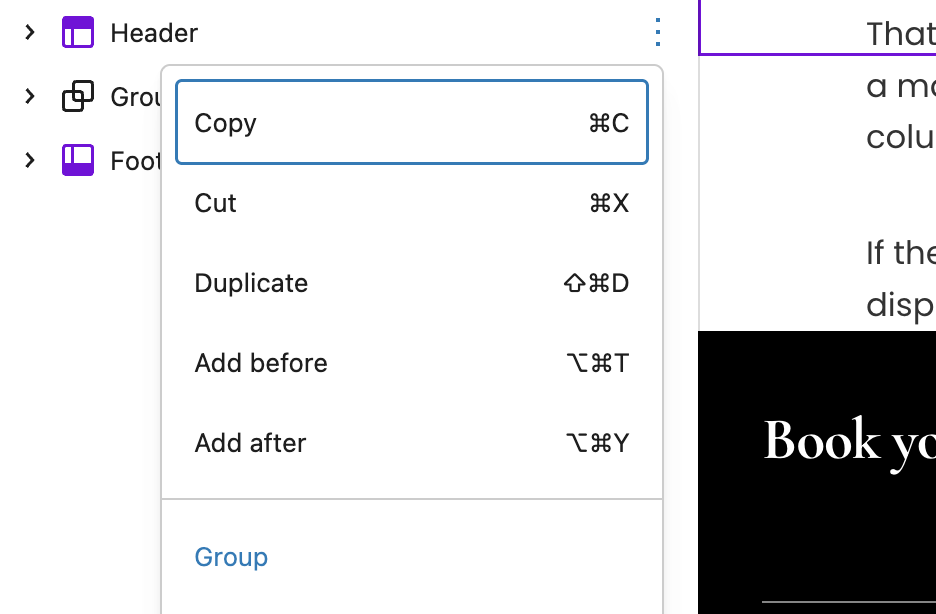
First, open your site editor (Appearance → Editor) and navigate to your header template.
If your header isn’t already grouped, select all the elements that make up your header — such as your site title, logo, and navigation block — then click the “Group” option from the block toolbar. This will wrap everything into a single Group block, making it easier to manage layout and positioning.
Step 2: Set the Group Position to Sticky
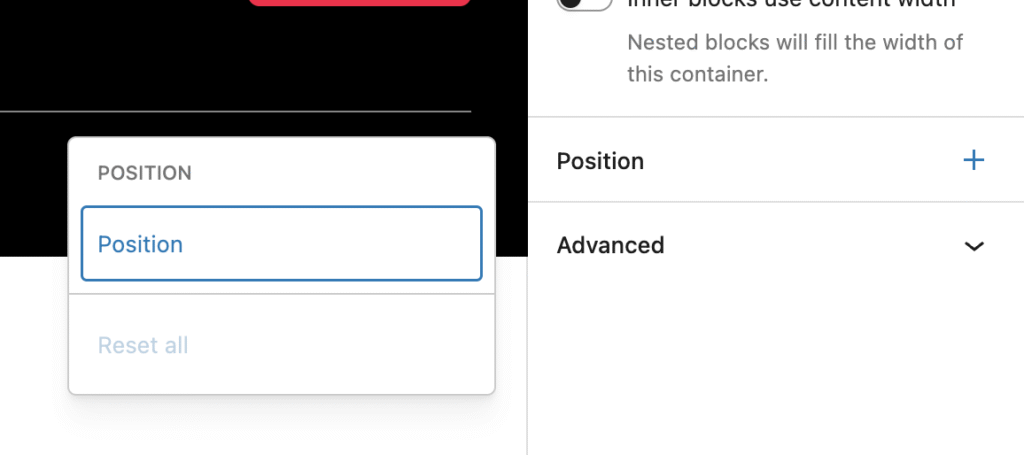
With the Group block selected, open the Block Settings panel on the right-hand side.
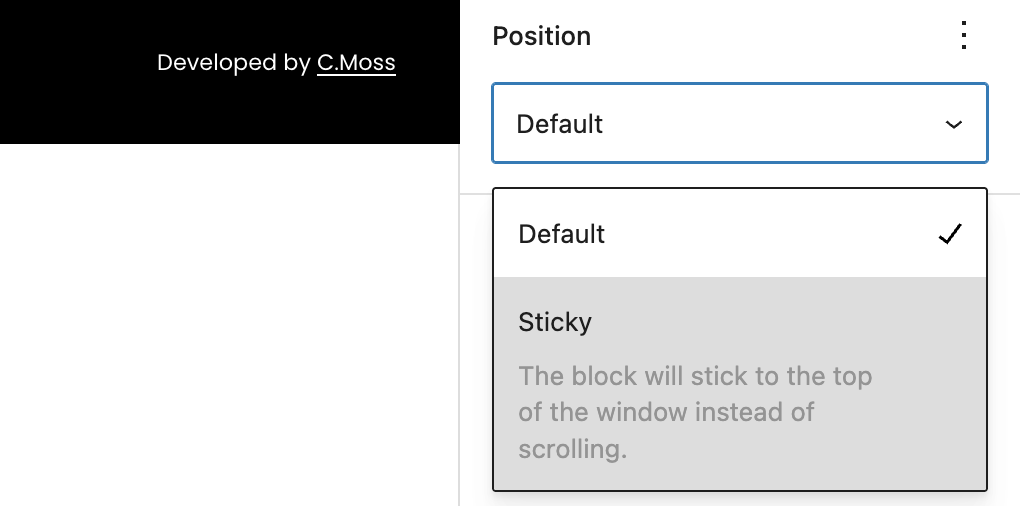
Under the “Position” section, you’ll find an option called Position. Choose Sticky from the dropdown menu.
By default, the sticky positioning will apply to the top of the page, but you can also specify whether it should stick to the top, bottom, or another position using additional settings or custom CSS if needed.
Step 3: Adjust the Z-Index and Spacing (Optional)
To make sure your sticky header stays visible above other content, you might want to adjust its Z-index.
In the Advanced settings, look for the Z-index field and set it to something like 10. This ensures it stays layered above your page content.
Also, check your padding and margins so your header doesn’t overlap the page content when scrolling.
Step 4: Save and Test
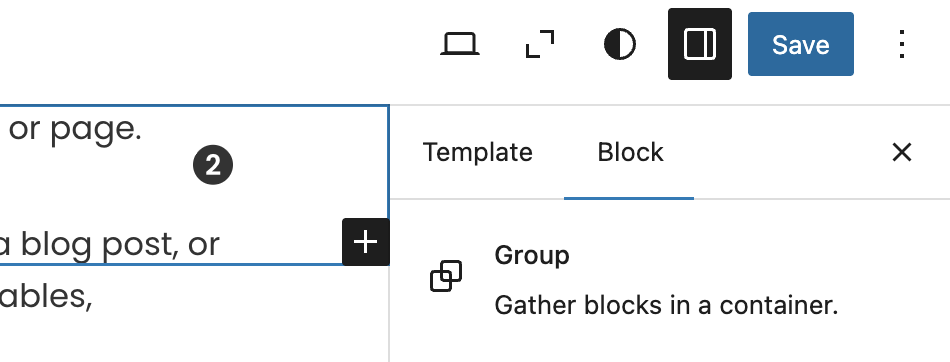
Click Save in the top right corner and preview your site. Scroll down to confirm that your header remains visible as you move down the page.
If it’s not behaving as expected, make sure:
- The header group is at the top level of your template (not nested inside another group with overflow hidden).
- The sticky option is applied to the correct block.
- You’ve cleared your browser cache to see the latest changes.
That’s It!
With these simple steps, you’ve added a sticky header using only the WordPress Block Editor — no custom CSS or plugins required. This approach keeps your design clean, fast, and easy to manage right inside the Site Editor.
You can contact us for similar major WordPress adjustments.
Leave a Reply